
Organizing with Lists
Create and manage lists to organize your saved recommendations
Organizing with Lists
Lists are how you organize recommendations in Envoyr. Group places by destination, trip, vibe, or however makes sense to you.
Your Lists
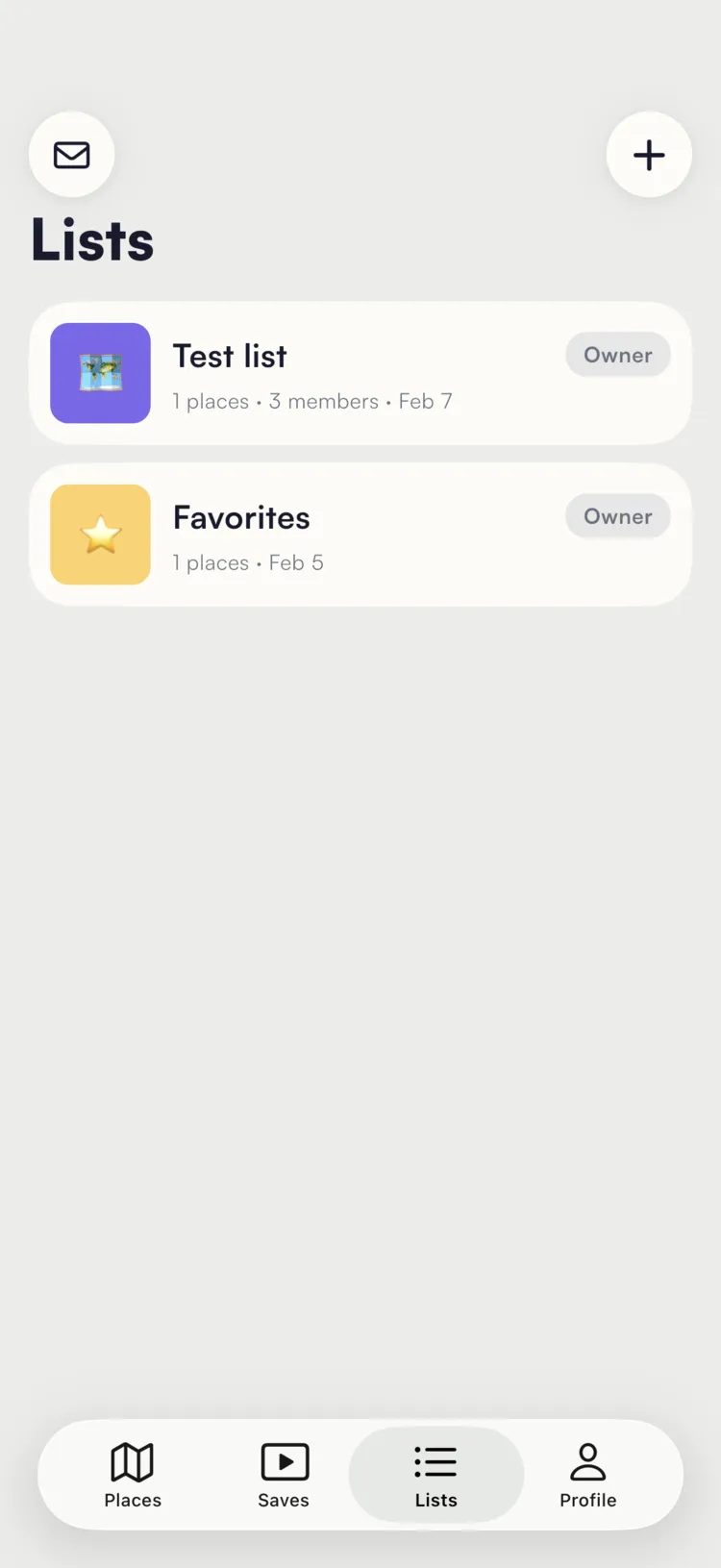
Navigate to the Lists tab to see all lists you own or have been invited to. Each list shows its icon, title, how many places it contains, member count, and when it was last updated.
Every account starts with a Favorites list - a quick place to save recommendations you don't want to lose.
Creating a List
Tap the + button on the Lists page to create a new list.
Name your list
Give your list a title (e.g., "Tokyo 2026" or "Best Coffee Spots"). You can also add an optional description.
Pick an icon
Choose from 16 emoji icons to make your list easy to identify at a glance.
Pick a color
Select one of 8 color options to give your list a distinct look.
Create
Tap Create and your list is ready to go.
Adding Recommendations to a List
There are two ways to add recommendations:
From a List
- Open the list
- Tap the options menu (three dots)
- Select Add Recommendations
- Browse or search your recommendations
- Select multiple recommendations at once
- Tap Save to add them all
This is the fastest way to bulk-add places to a list.
From a Recommendation
- Open any recommendation detail
- Tap Add to Lists
- Toggle the checkboxes next to each list you want to add it to (or remove it from)
Changes are saved immediately. This is useful when you're browsing your recommendations and want to quickly file one into the right lists.
Exploring a List
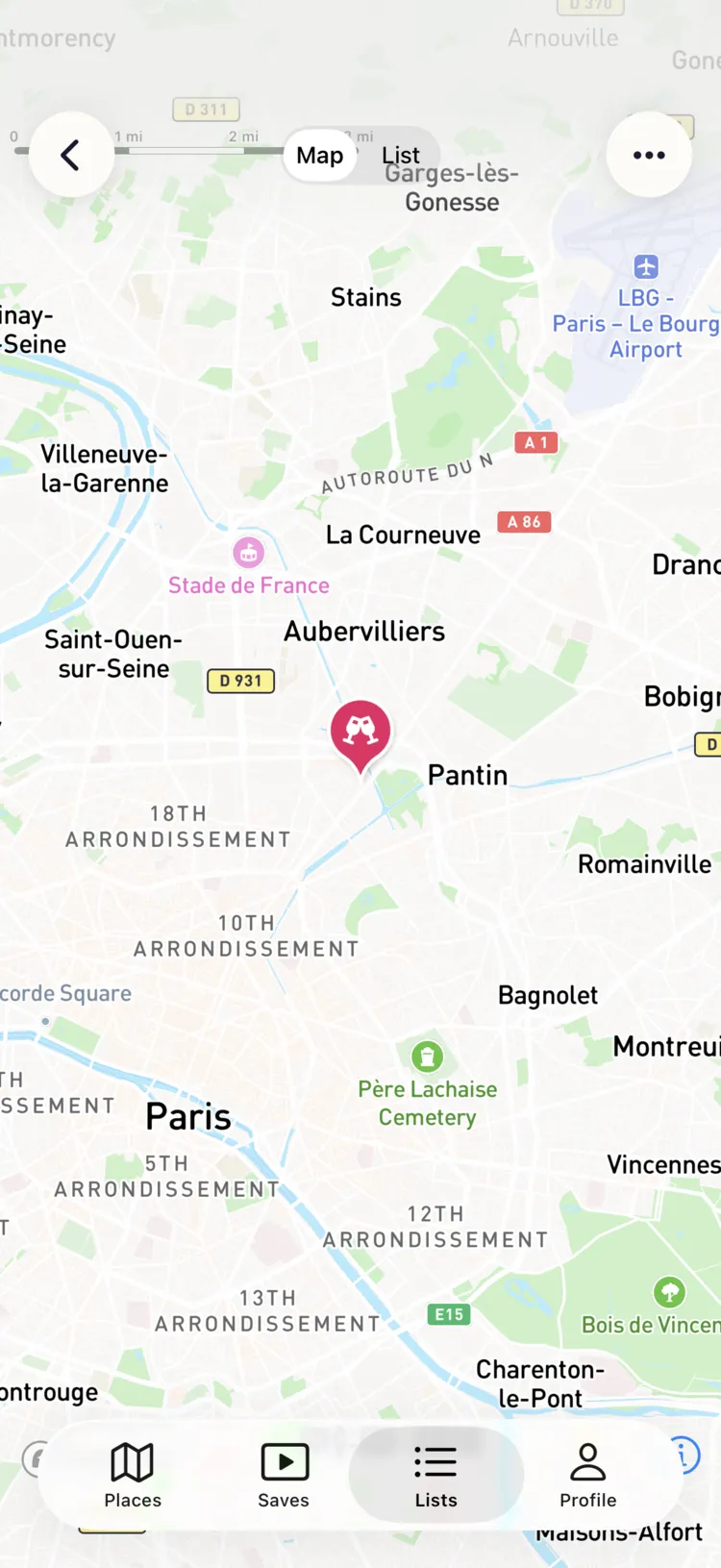
Open any list to see its recommendations in two views, toggled by the segmented control at the top:
Map View
All recommendations in the list are shown as pins on an interactive map. Tap any pin to view details about that place.
List View
A scrollable list of all recommendations with the list title and description at the top. Each recommendation is tappable for full details.
Filtering
Within a list, use filter buttons to narrow down what's shown:
- By type - Restaurants, cafes, museums, attractions, etc. A count badge shows how many match.
- By location - Filter by city or area.
- Clear filters - Tap the clear button to reset.
Filters apply to both the map and list views.
Collaborating with Members
Lists support collaboration through role-based membership. Each member has one of three roles:
| Role | What they can do |
|---|---|
| Owner | Full control - add/remove recommendations, manage members, delete the list |
| Editor | Add and remove recommendations from the list |
| Viewer | See the list and its recommendations, but can't make changes |
Inviting Members
- Open the list and tap the options menu
- Select View Members
- Tap Invite Member
- Enter the person's user ID and select their role (Editor or Viewer)
Invited members will see the list once they accept the invitation.
Viewing Members
From the options menu, tap View Members to see everyone with access to the list, their role, and whether they've accepted their invitation.
Managing Lists
From the options menu on any list you own or edit:
- Add Recommendations - Bulk-add from your saved recommendations
- View Members - See and manage list members
- Delete List (owner only) - Permanently remove the list and all its recommendation associations
- Leave List (non-owner) - Remove yourself from a shared list