
Add Envoyr to Your Share Menu
Set up Envoyr in your iOS share sheet for quick access from any app
Add Envoyr to Your Share Menu
Before you can share reels to Envoyr, you'll need to add it to your iOS share menu. This only takes a few seconds and you'll only need to do it once.
Open Any App's Share Sheet
Open Instagram, TikTok, Safari, or any app and tap the share button. You'll see the standard iOS share menu appear.

Scroll to Find 'More'
In the share sheet, scroll right on the app row until you see More (with a "..." icon). Tap it to customize your share menu.
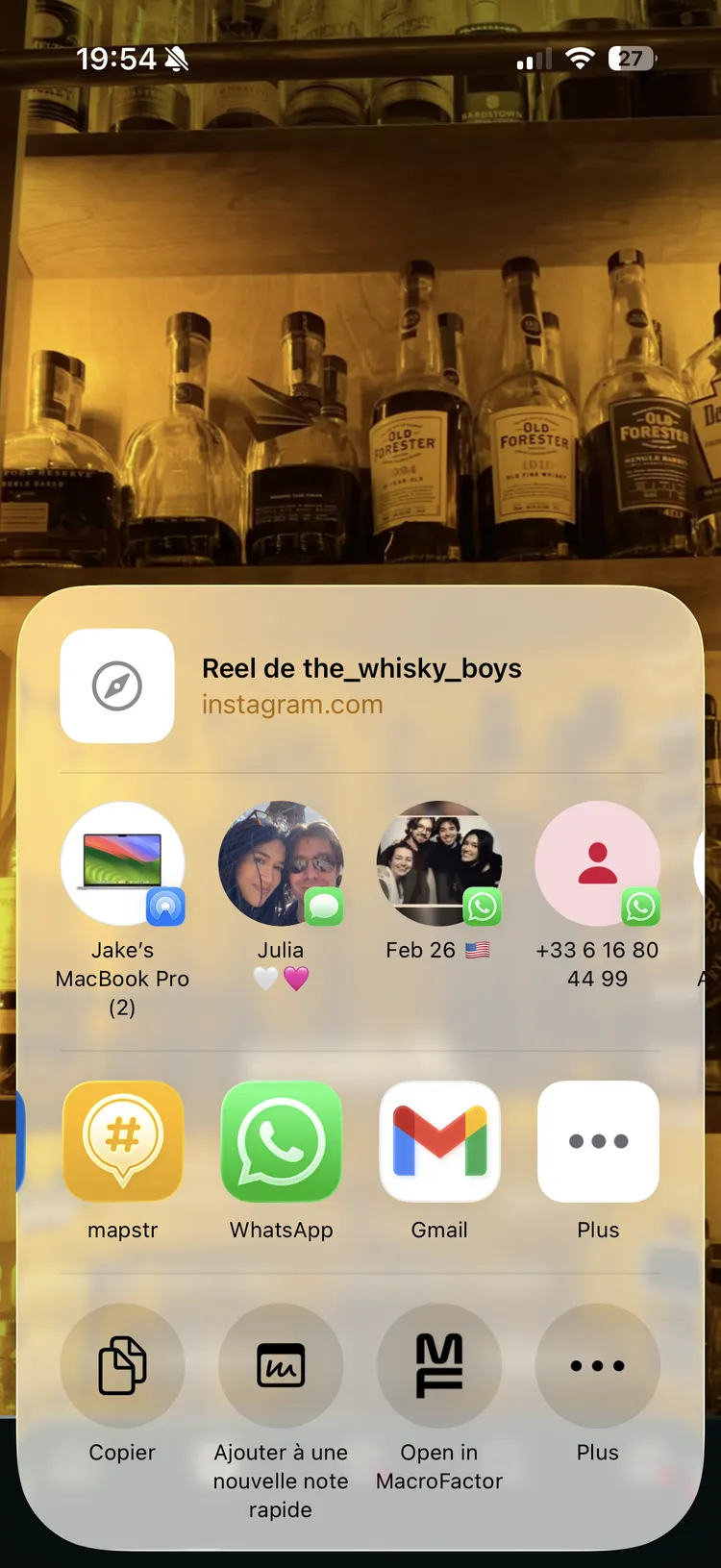
Add Envoyr to Favorites
Find Envoyr in the list and tap the green + button to add it to your favorites. You can also drag it to reorder where it appears.
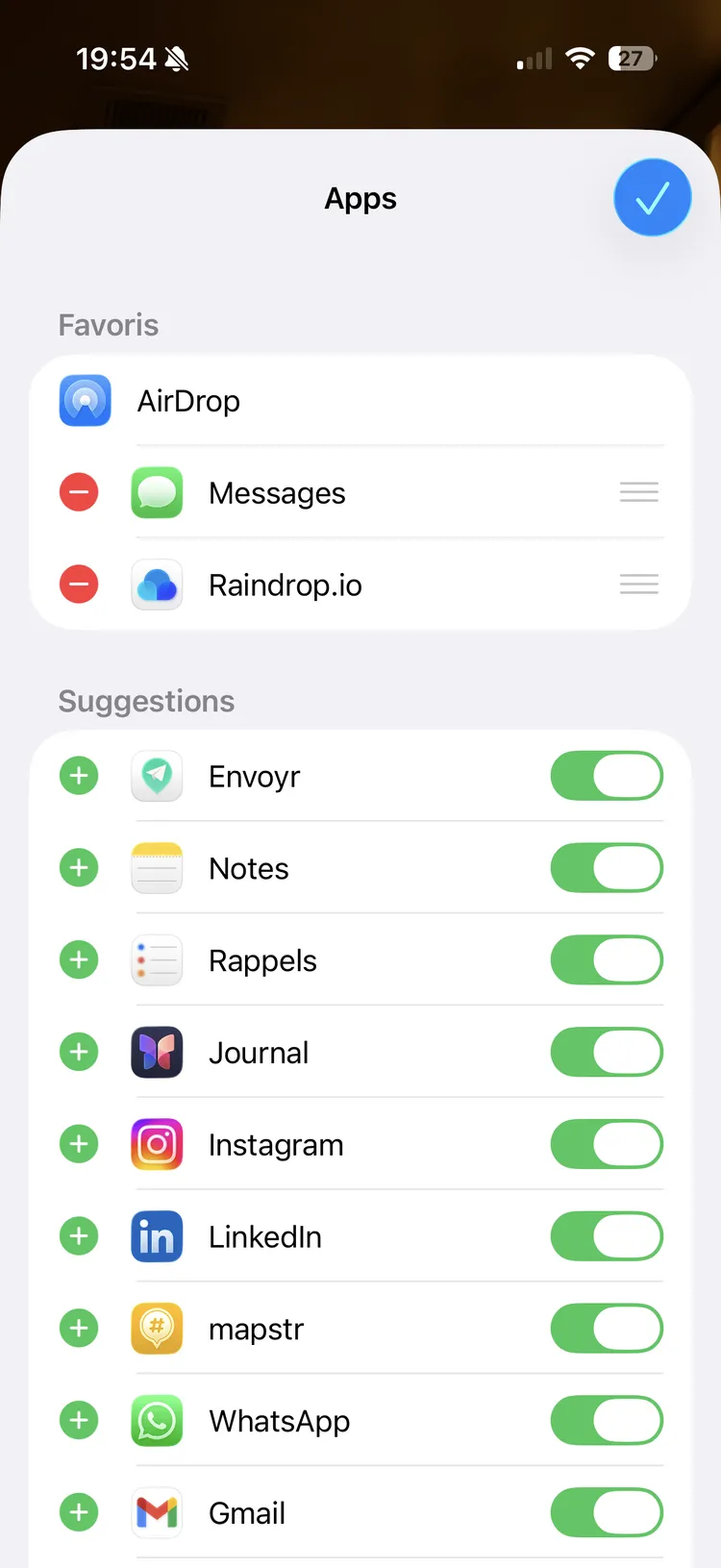
Done!
Tap Done in the top right. Now Envoyr will appear directly in your share sheet whenever you want to save a recommendation.
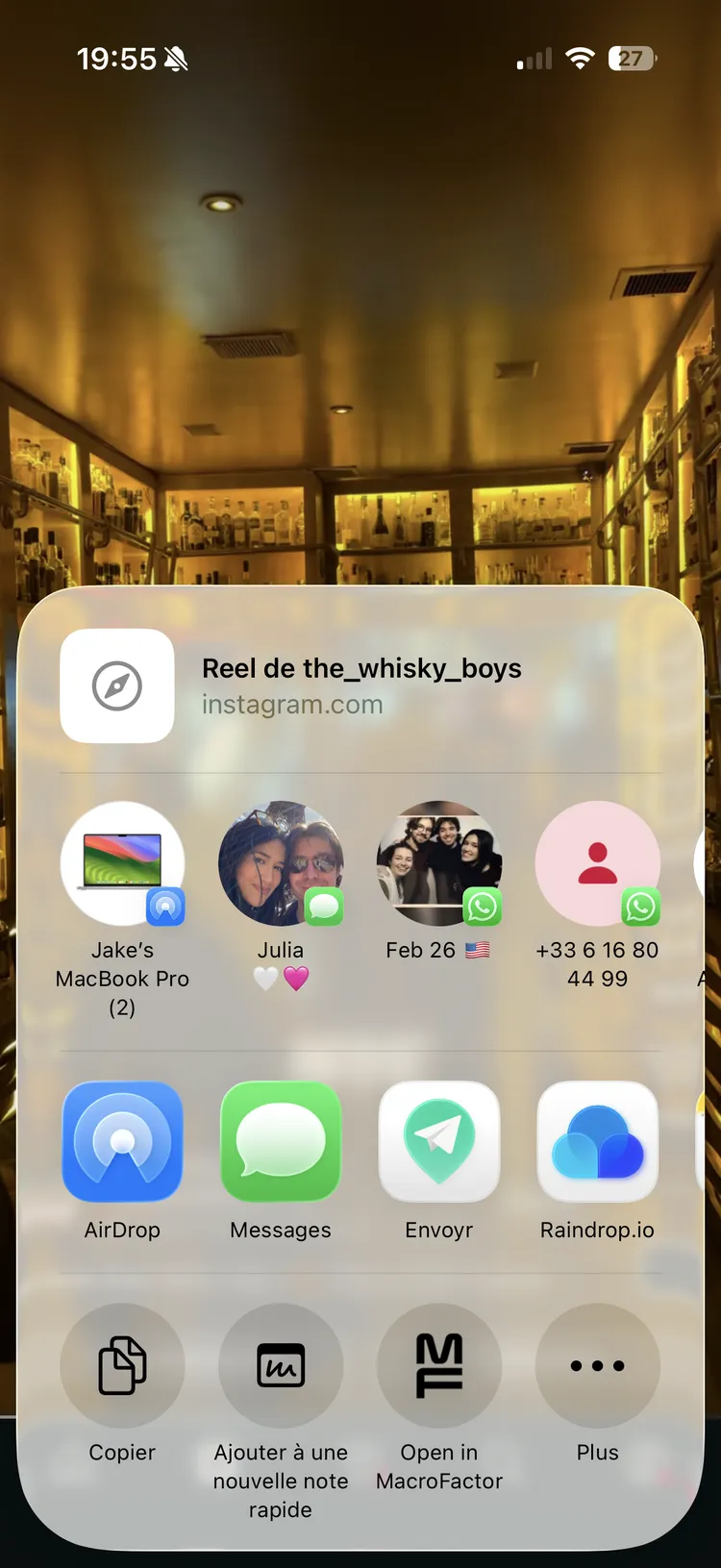
Pro tip: Drag Envoyr to the first position so it's always easy to reach when you find a great recommendation.
Next Steps
Now that Envoyr is in your share menu, learn how to share content: